Homepage
When you first login, you will see the Welcome message and the Dr Joe introduction video:
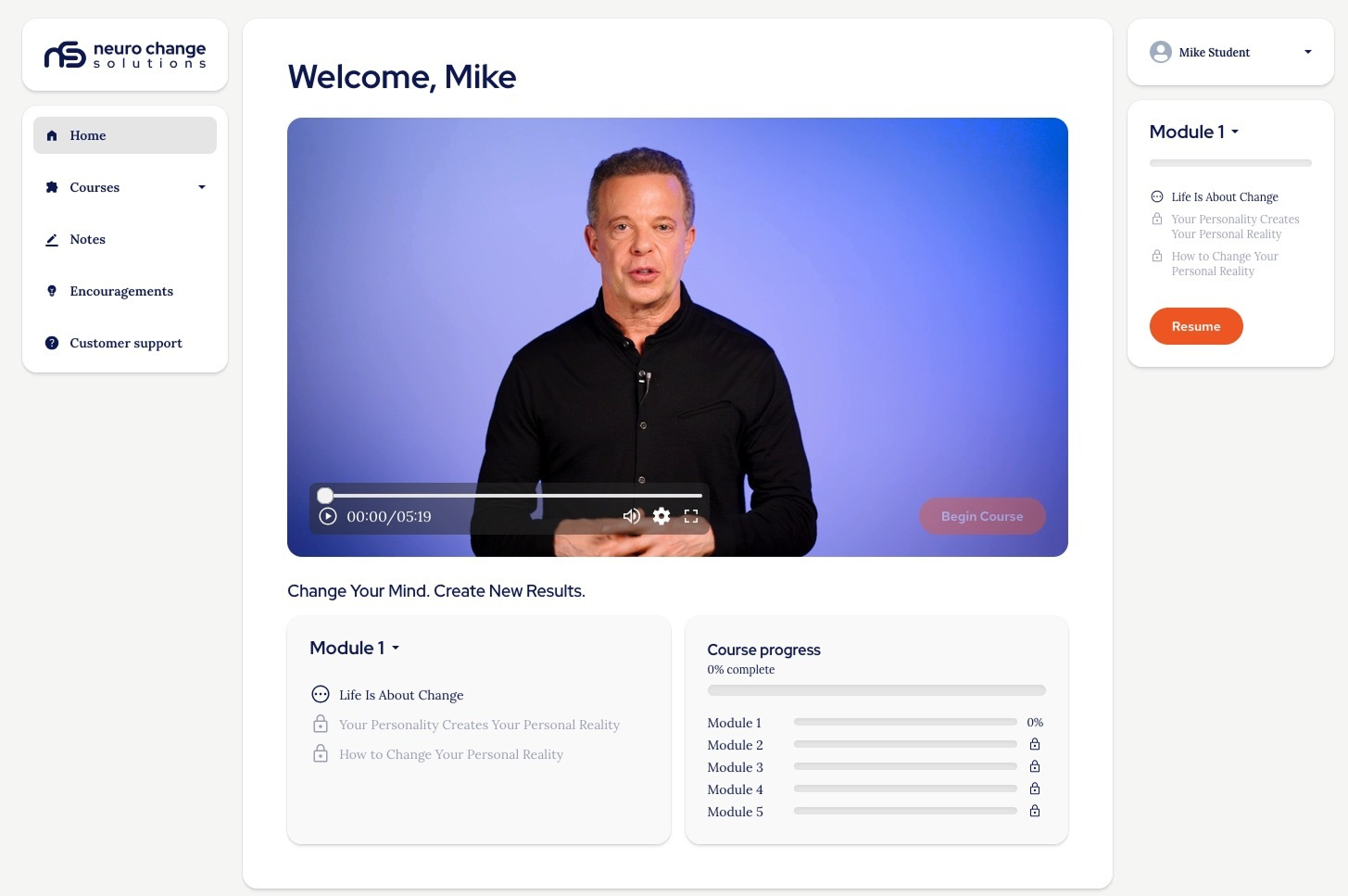
You will see that there are progress indicators that will all show zero as you haven't started yet and most of the course modules are locked.
Once you have watched the intro video the 'Begin Course' button will become active and you can start the course.
You will see that when you log back in your progress through the course will be displayed and the various modules unlocked as you go:
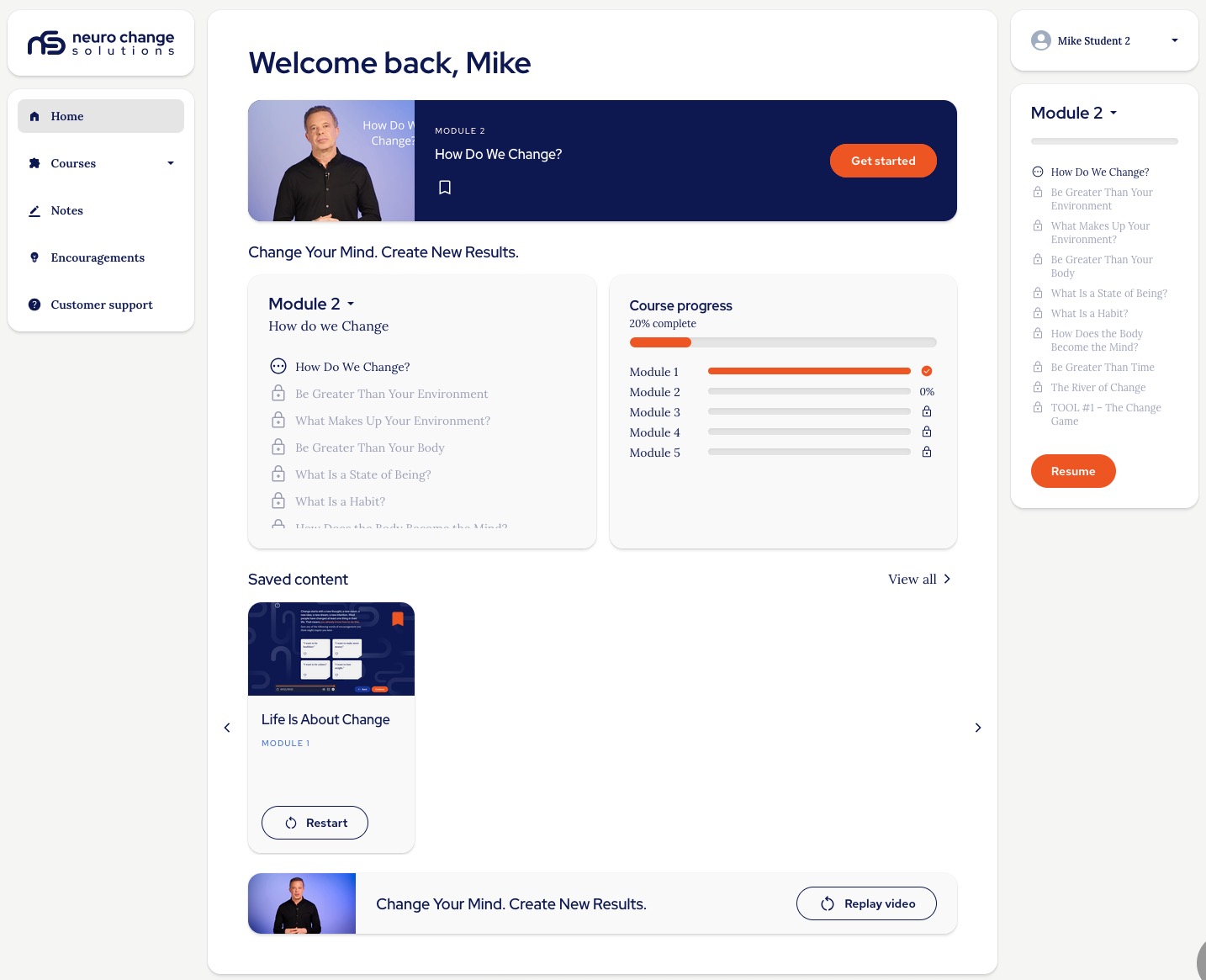
The menus
There are several menus...
The left-hand navigation
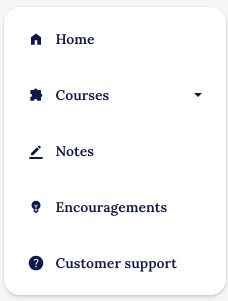
Here you can navigate to:
- The homepage
- The course menu that takes you to:
- Course overview page
- Saved content
- Notes
- Encouragements
- Customer Support that loads the Help Center:
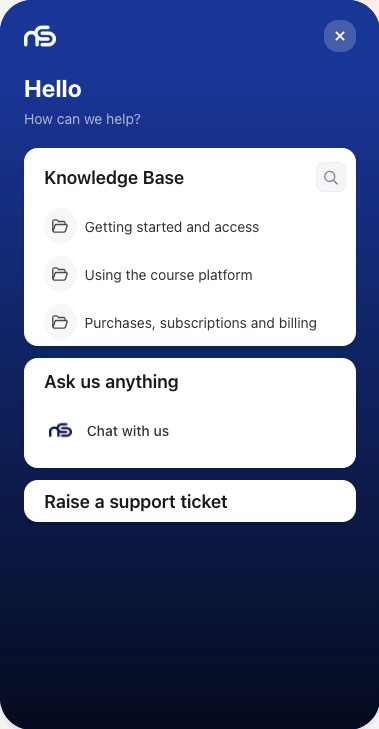
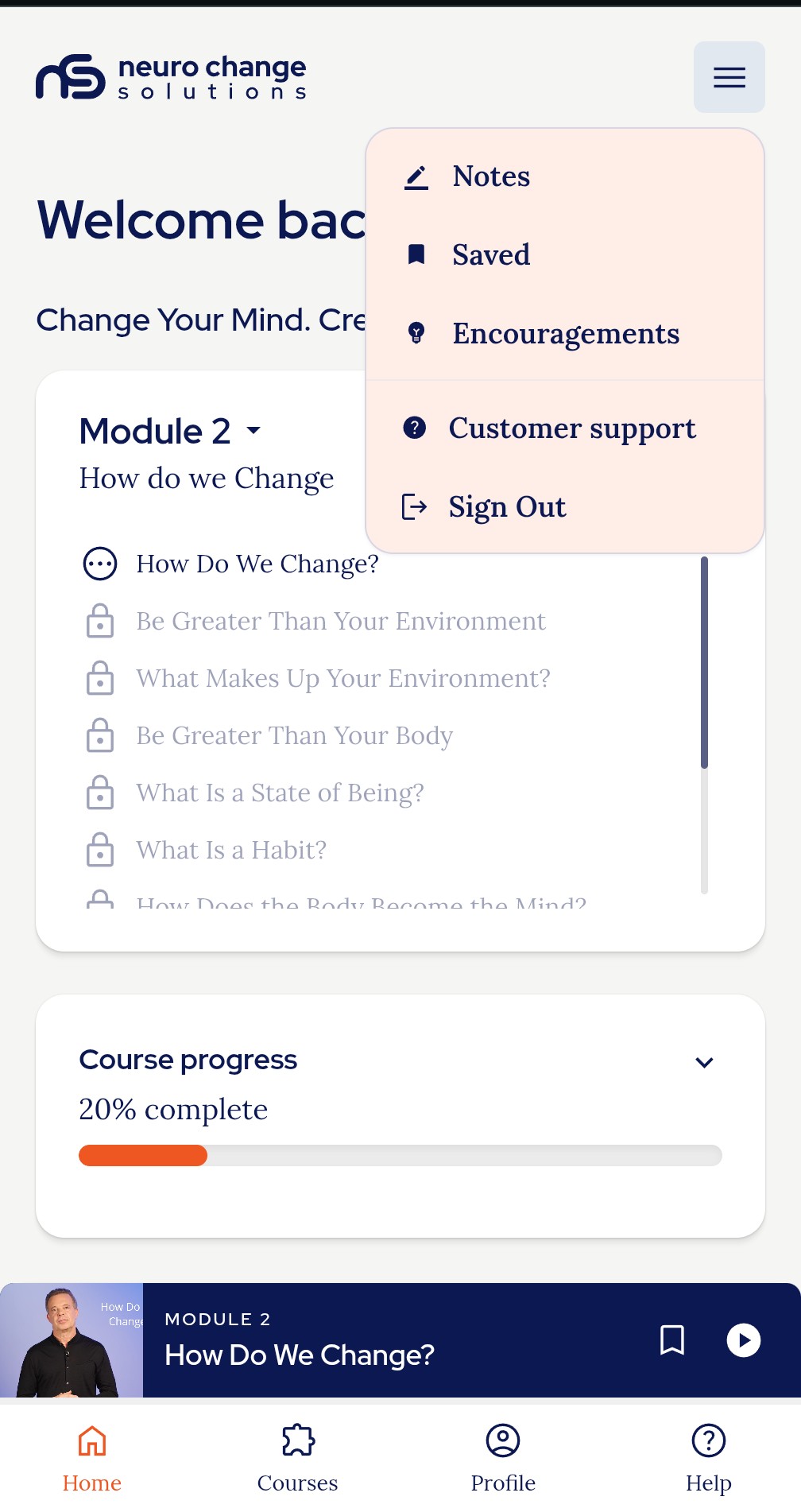
On mobile, that menu is in the burger menu: 
Profile navigation
On the right hand side (or at the bottom of the mobile view, see screenshot above) you will find the 'Profile' menu, in Desktop this menu is in the dropdown next to your name:
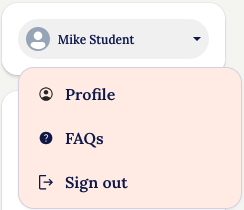
Here you can view your Profile (that includes your Subscription options), navigate to the FAQs page, or sign out.
Module navigation
On the right hand side of the desktop view you see the Module navigation menu:
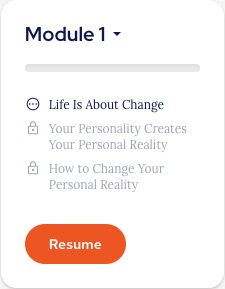
If you click the dropdown next to the Module number you see all modules and if you have unlocked them:
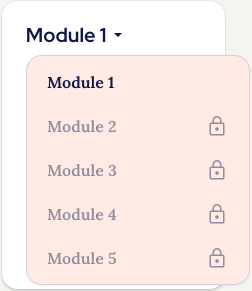
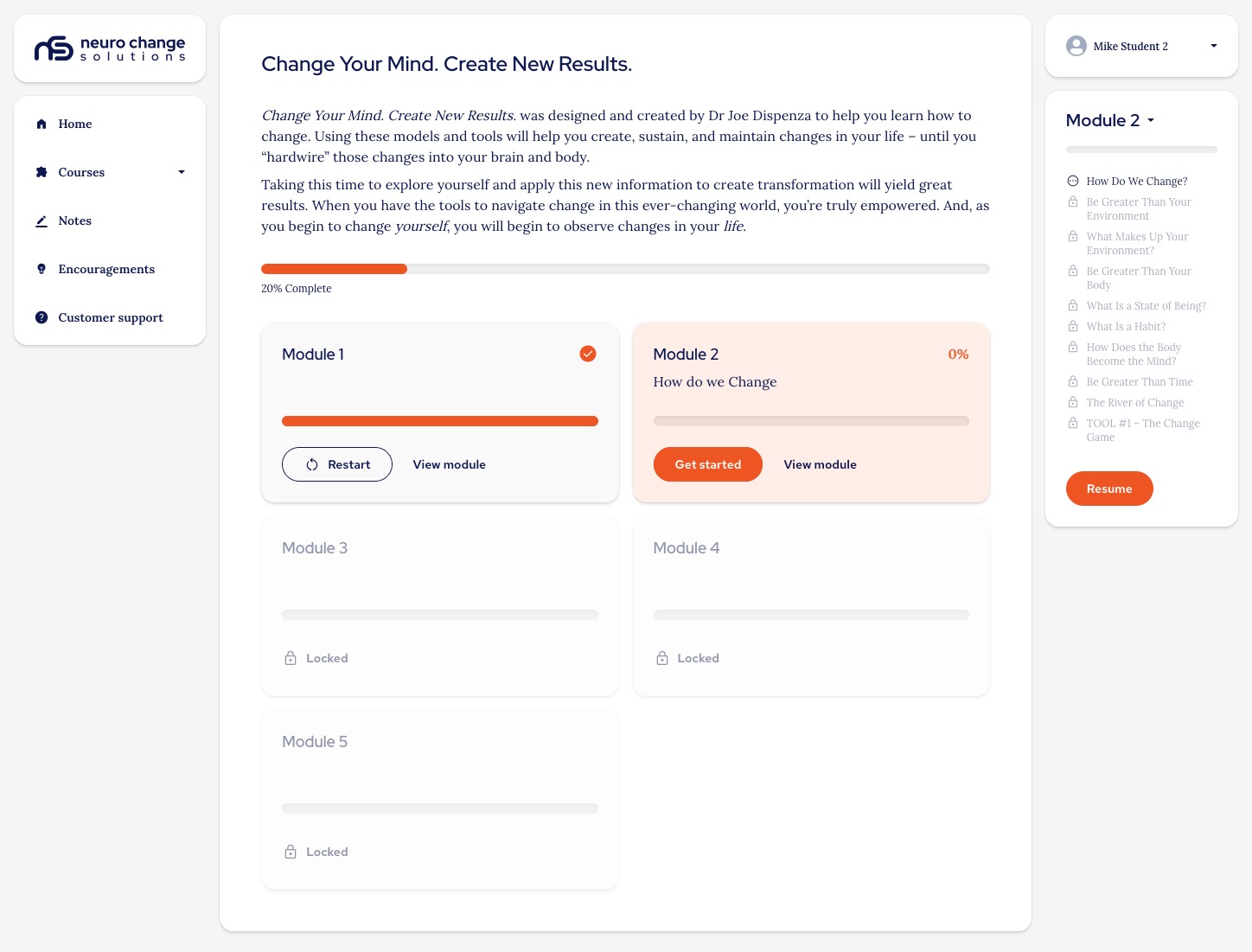
If you have unlocked the modules, you can click on them to navigate to the course overview page that also shows your module progress and allows you to continue the course or restart any unlocked modules:
Thank you.
The NCSU Team.
Was this article helpful?
That’s Great!
Thank you for your feedback
Sorry! We couldn't be helpful
Thank you for your feedback
Feedback sent
We appreciate your effort and will try to fix the article