You can add users to your subscription in two ways...
Option 1: From your confirmation email
If you have purchased multiple subscriptions, you will have received an email confirming that your subscription is now active:
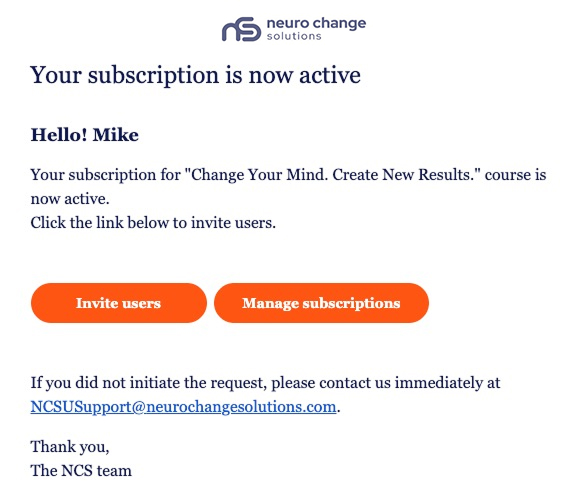
If you click 'Invite users', you will be taken to the screen where you can add users:
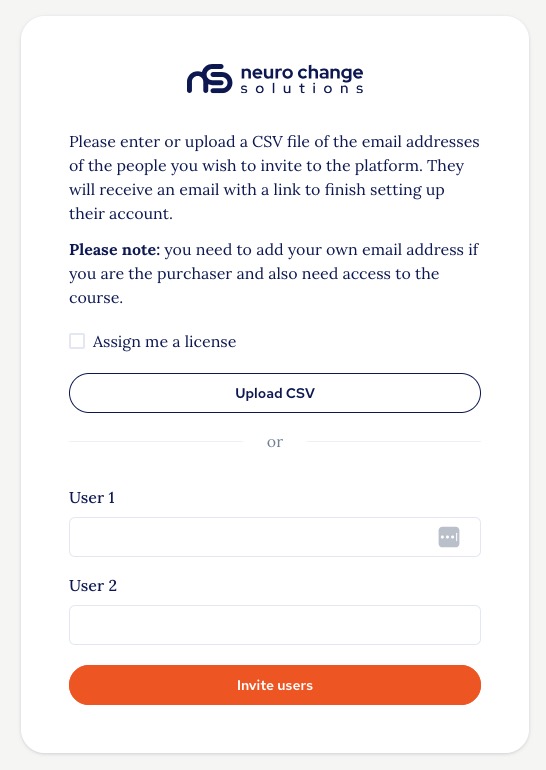
You can add users in multiple ways:
- Check the 'Assign me a license' and your email will be populated into one of the User fields.
- You can manually add or copy email addresses into the User fields.
- If you have several addresses to add, you can use the CSV upload feature, just create a CSV file with the email addresses you want to add, with each email address on separate rows, use the upload feature, and the email addresses will be automatically populated.
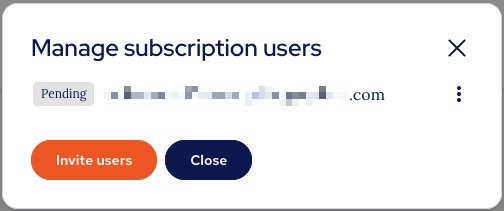
Once you have added all the users you need, click 'Invite users' and you will see a confirmation notification that your invitation has been sent and each email address invited will be listed with 'Pending' next to it until that user accepts their invite, at which point they will be shown as 'Active':
Option 2: From your account admin menu
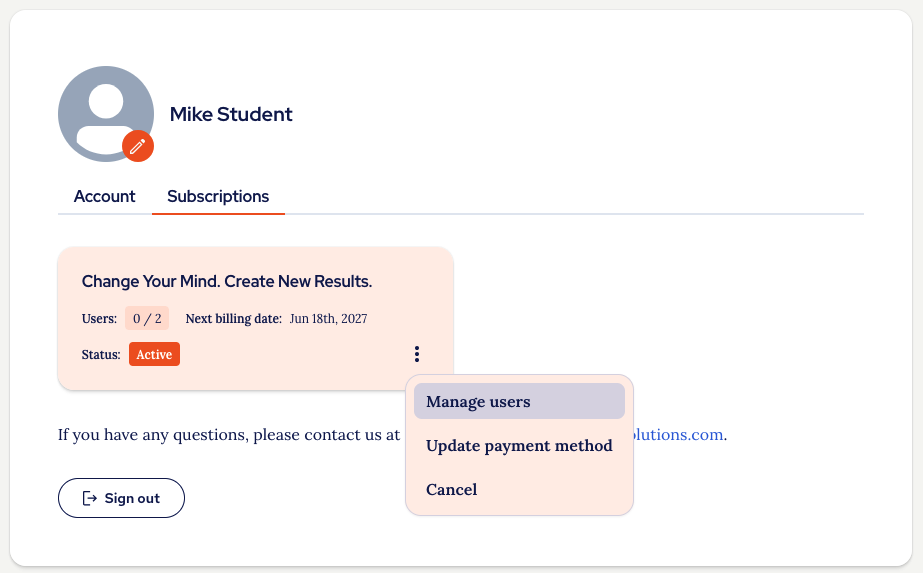
If you have not used the links in the 'Subscription active' email or you clicked straight into 'Manage subscriptions', you would be taken to the Subscriptions management screen:
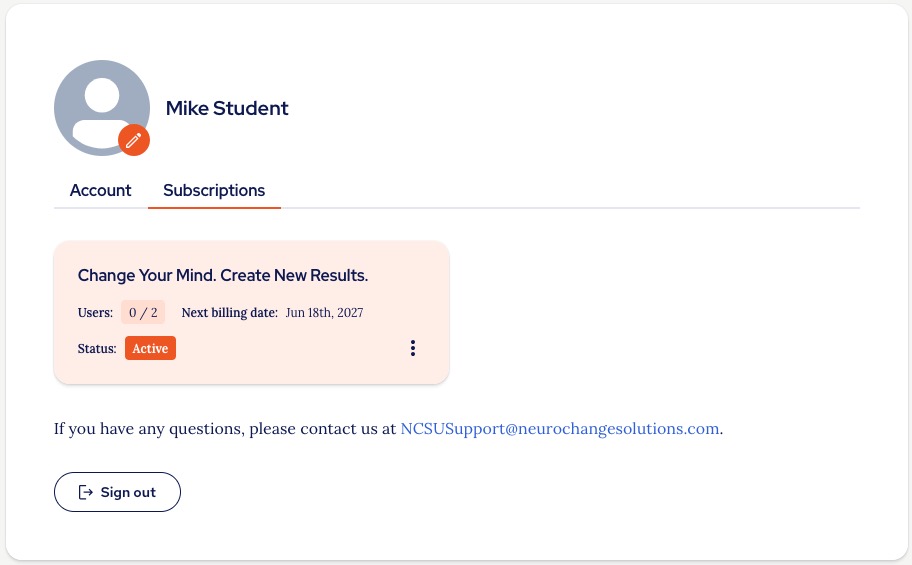
This will show you if you have invited users or assigned your licenses and allow you to send invitations as needed if you click the three dots menu and select 'Manage users':
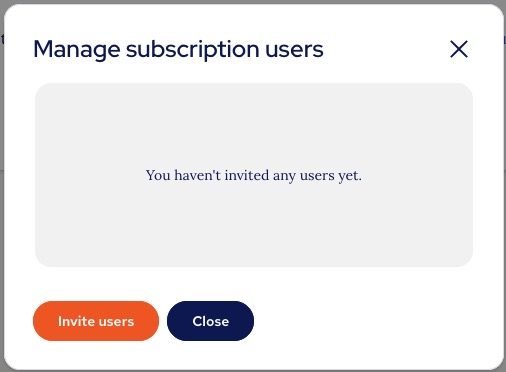
If you haven't currently invited any users, you will see a message confirming this and giving you the option to 'Invite users':
If you click 'Invite users', you will be taken to the screen where you can add users:
You can add users in multiple ways:
- Check the 'Assign me a license' and your email will be populated into one of the User fields.
- You can manually add or copy email addresses into the User fields.
- If you have several addresses to add, you can use the CSV upload feature, just create a CSV file with the email addresses you want to add, with each email address on separate rows, use the upload feature, and the email addresses will be automatically populated.
Once you have added all the users you need, click 'Invite users' and you will see a confirmation notification that your invitation has been sent and each email address invited will be listed with 'Pending' next to it until that user accepts their invite, at which point they will be shown as 'Active':
Please note
The users you are inviting might benefit from you sharing a link to the Help Centre and the account setup guide:
Thank you.
The NCSU Team.
Was this article helpful?
That’s Great!
Thank you for your feedback
Sorry! We couldn't be helpful
Thank you for your feedback
Feedback sent
We appreciate your effort and will try to fix the article